
Summarize an email thread
Gemini can summarize an email thread with more than 2 replies.
- At the top of the email thread, click “Summarize this email”.
- In the side panel, you can also enter a prompt to request a summary.
Examples:
- “Summarize this email.”
- “Create a to-do list for me based on this email.”
- “Explain this email to me like I’m a five-year-old.”
Suggest reply options
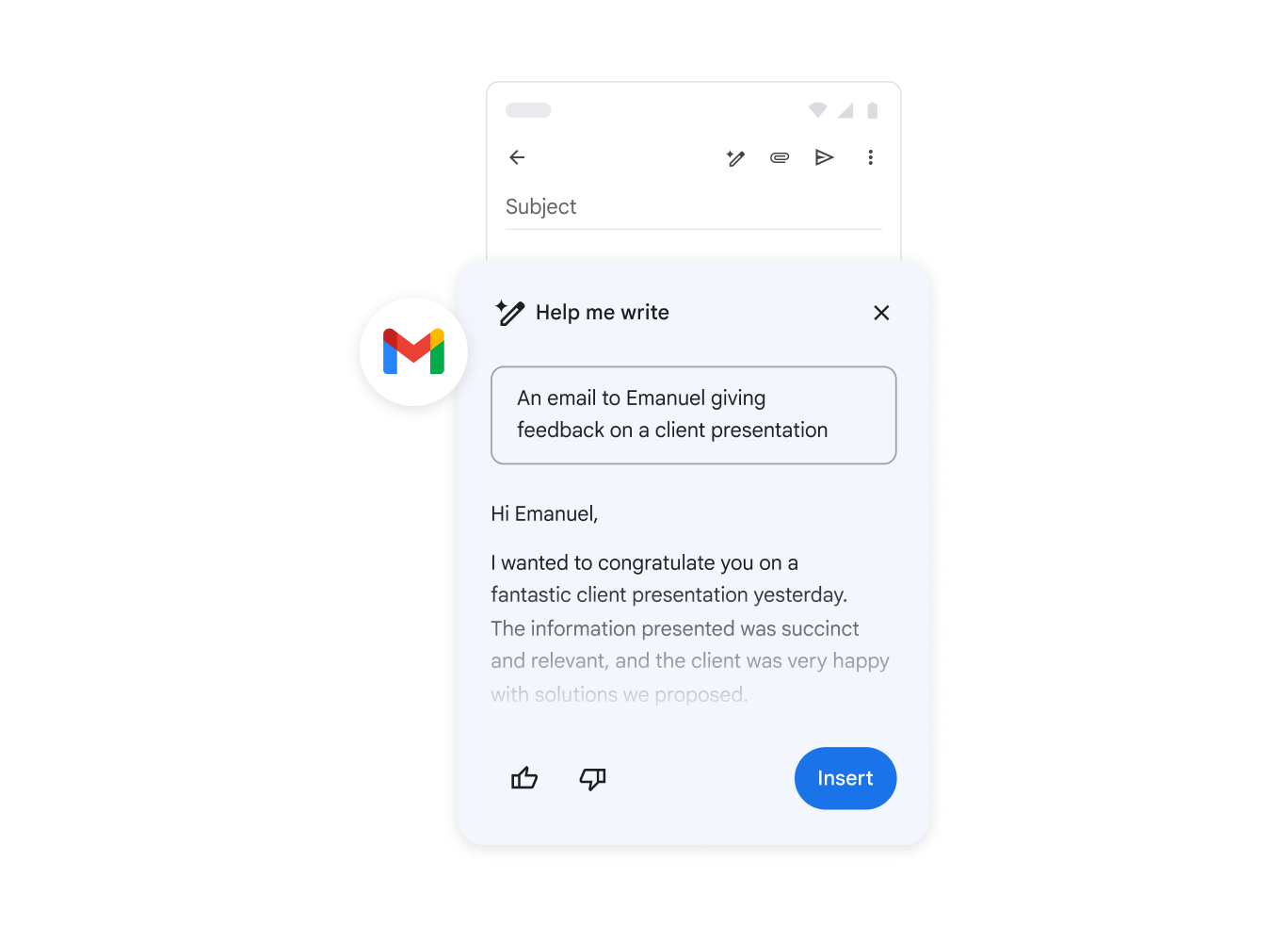
Gemini can draft a new email or a reply.
- To get suggested replies:
- On your computer, open an email thread.
- Click “Ask Gemini”.
- At the bottom right, click “Suggest a reply”.
- To draft a new email from scratch, ask Gemini to create the draft.
Examples:
- “Draft an email to announce the launch of Project Clover.”
- “Draft a thank-you note to a colleague for their work on Project Clover.”
Find information from past emails
Gemini gets context from email information in your inbox, such as reservations, packages, and flights, for example:
- “When is my package arriving?”
- “What time is my next flight?”
Search for specific types of emails
Gemini can search for your unread emails, emails from a specific date range, and emails from specific people. Gemini will load the results in a Gmail search.
Examples:
- “Show my unread emails.”
- “Emails from [person] sent last week.”
- “Show unread emails from this week.”
Find information from your Google Drive files
Gemini can reference Google Drive files and documents.
Examples:
- “Could you extract the key points from my team’s weekly meeting notes located in my documents?”
- “Summarize my document for Project Clover.”
Tip: To check the sources used by Gemini in the response, select the “Sources” option.
- “How do I edit my email filters?”
- “What is the procedure for generating a label?”
Ask questions from the web
Important: To get answers from the web, it’s best to use phrases like “Search Google”, “Searching the web”, or “Using web search” in your prompt.
Examples of requests to the model:
- “Describe the current weather in my city using web search.”
- “Explain, with information from the web, whether lightning can strike the same place twice.”
Get information about your events
Important: Gemini in Gmail can only provide information about events from your primary Calendar.
- “What is my first meeting tomorrow?”
- “When is the next time I meet with Lori?”
Tip: To specify Google Calendar in your request, add “@Calendar” at the beginning of your prompt. Create events
Important: Keep in mind that Gemini in Gmail can only create events directly in your primary calendar.
- “Schedule a lunch block for tomorrow at noon.”
- “Create a weekly run on Fridays at 8 AM.”
- Based on an open email: “Add this to my calendar”.
Tip:
- To specify Google Calendar in your request, add “@Calendar” at the beginning of your prompt.
Create images with Gemini
Gemini can also generate images in Gmail.
- On your computer, open Gmail.
- In the top right, click “Ask Gemini”.
- In the side panel, create your own prompt.
Example: “Create an image of a dog wearing glasses.”
You can also:
- Change your prompt:
- Click “Edit prompt”.
- Send feedback on the images:
- At the bottom, click “Good suggestion” or “Bad suggestion”.
Use a Gem
- On your computer, in the top right, select “Ask Gemini”.
- On the right, in the side panel, click “Gems”.
- Click the Gem you want to use.
- Select a custom or pre-made Gem.
- Once ready, start the conversation with a question or a prompt at the bottom.
Tip: To create a Gem, go to gemini.google.com. You can then use your Gem in the Gemini app and in the Gemini side panel. Learn how to use Gems in Gemini apps.


One Comment