Use other apps without leaving Gmail
Chat with colleagues in Gmail
- On the left, click Chat and then New chat. If you don’t see Chat, make sure it is turned on.
- Enter a name or email address.
- To start a chat with multiple participants, select the “Start group conversation” option.
- Compose your message and click Send.

Start or join a video call from Gmail
- On the left, click Meet. If you don’t see Meet, make sure it is turned on.
- To start a new meeting, click New meeting.
- To join an already scheduled meeting, go to “My meetings”, find the meeting, and click “Join”.

Open your Google Calendar and your events
- Open Calendar: On the right, click Calendar.
- Tip: If you don’t see this option, contact your administrator.
- To view detailed event information, click on it. A window will open displaying all important details.
- Respond to an event: Open an event. At the bottom, next to Going?, click a response.
- Check events for one or more days: Click More and then Day or Schedule.

Open notes in Google Keep
- Open Google Keep: On the right, click Keep.
- Tip: If you don’t see this option, contact your administrator.
- Add a note or list: Click + Take a note or New list.
- Edit a note: Click a note and enter a message. Click Done.

Open your task lists in Google Tasks
- Open Google Tasks.
- On the right, click Tasks. The current list appears at the top, with tasks underneath.
- Tip: If you don’t see this option, contact your administrator.
- Add a new list: Click the down arrow and then Create new list.
- To select a list, click the drop-down arrow.
- Add a new task: Click + Add a task. To add a new task from an email, drag the email into a task list.
- To edit or delete a task, hover over it first and click “Edit”. In the pop-up window, you will find the “Delete reminder” option to remove the task.

Customize Gmail with add-ons
- On the right, click Add-ons Add. A list of add-ons in Google Workspace Marketplace will open.
- Click an add-on.
- Click Install.

Write a message with Gemini
- On your computer, open Gmail.
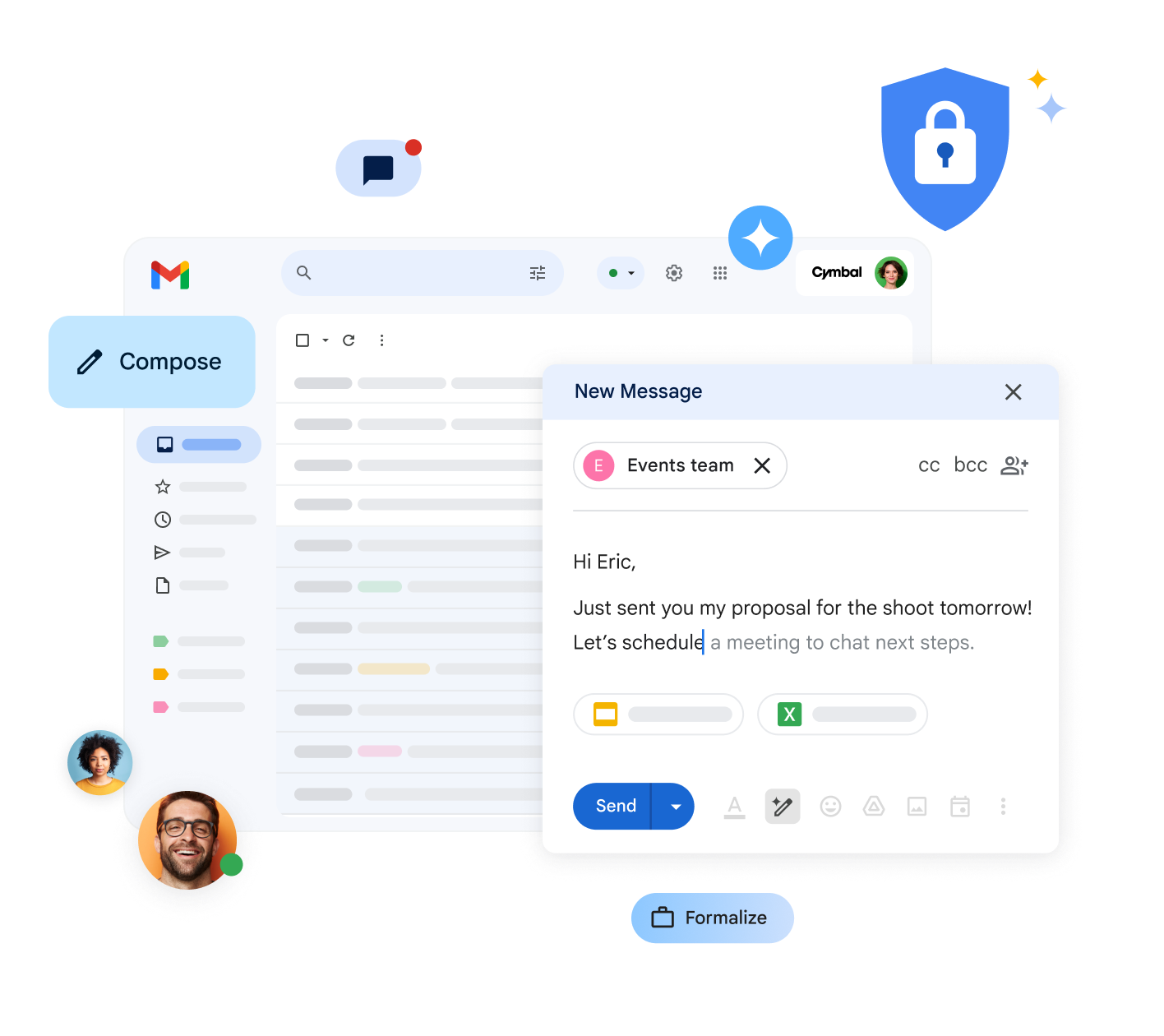
- In the top left corner, click Compose.
- In the bottom left corner of the box, click Help me write.

- Enter a message. For example:
- Write an email introducing a new team member who will manage \. Include details about their professional background, achievements, and personal interests.
-
Google Workspace Business Enterprise
$0.00
-
- Write an email introducing a new team member who will manage \
- Click Create.
- (Optional) Click Refine and then choose how you want Gemini to adjust the content.
- When you’re done, click Insert.