
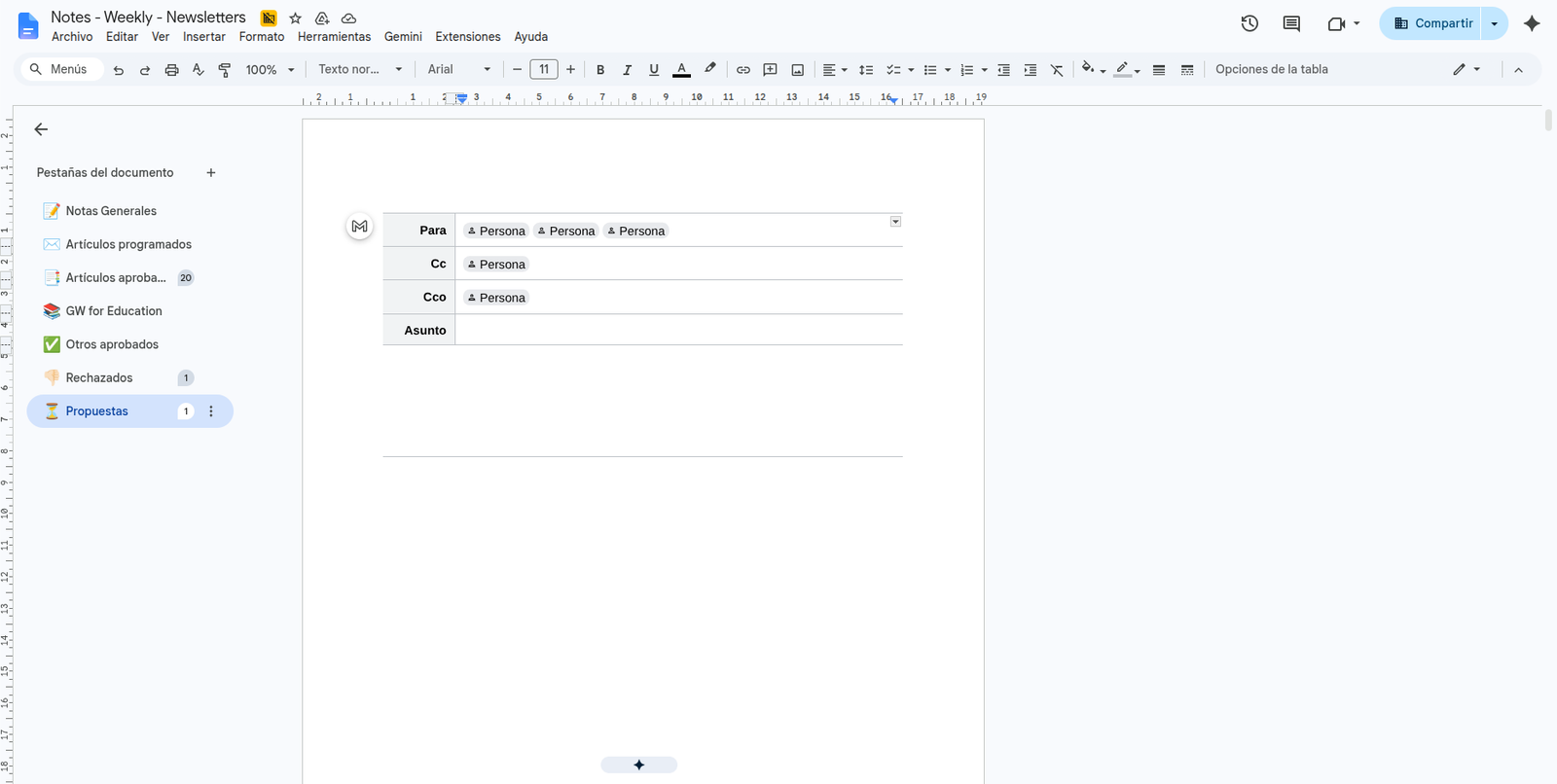

What is the “Email draft” building block?
It is a smart canvas feature (Smart Canvas) that allows you to write a complete email within a Google Doc. This includes the recipients (To, CC, BCC), the subject line, and the body of the message, while keeping all of Docs’ editing tools.
Benefits of drafting from Google Docs
- Rich formatting: Use advanced tables, lists, images, and text styles that are sometimes easier to manage in Docs than in the small Gmail window.
- Version history: If you accidentally deleted an important paragraph, you can easily recover it by checking the document’s history.
- Real-time collaboration: Before sending that crucial email to a client, invite your team to review the text, leave comments, or make suggestions directly on the draft.
Step by step: From a blank page to the inbox
Create an email draft in Google Docs
- Type the command @email anywhere in your document and press Enter. You can also go to the menu Insert > Building blocks > Email draft.
- You will see a special table where you can type the email addresses (or use @ to search for contacts) and the subject.
- If you have the Gemini add-on for Google Workspace, you can use “Help me write” to generate a first draft based on your ideas.
Preview and send an email draft in Gmail
- In the top left of the email draft, click Preview in Gmail.
- In the Gmail pop-up window, you can make further changes to your emails.
- When you are ready, click Send.
- Important: The email draft will be sent from the account you are currently logged into.
Ideal use cases
-
-
- Business proposals: Create a professional structure with pricing tables and comparisons that look flawless.
- HR announcements: So the legal and executive teams can review the tone before sending it company-wide.
-
Internal newsletters: Perfect for collaboratively drafting the company’s weekly summary.
-
Availability: Which licenses include this feature?
This feature is available for almost all Google Workspace editions, including:
- Business: Starter, Standard, and Plus.
- Education: Fundamentals, Standard, Teaching and Learning Upgrade, and Plus.
- Enterprise: Standard and Plus.
- Nonprofits and users with personal Google accounts.
If your company is still using legacy versions or free accounts and you want to scale up to advanced Artificial Intelligence features (like Gemini), at G Nerd we can help you with a seamless migration and setup.
Resources
- Draft emails from Google Docs
- New feature in Google Docs: email drafts
- Create & send email drafts
- How to use sources in Google Workspace with Gemini


One Comment