
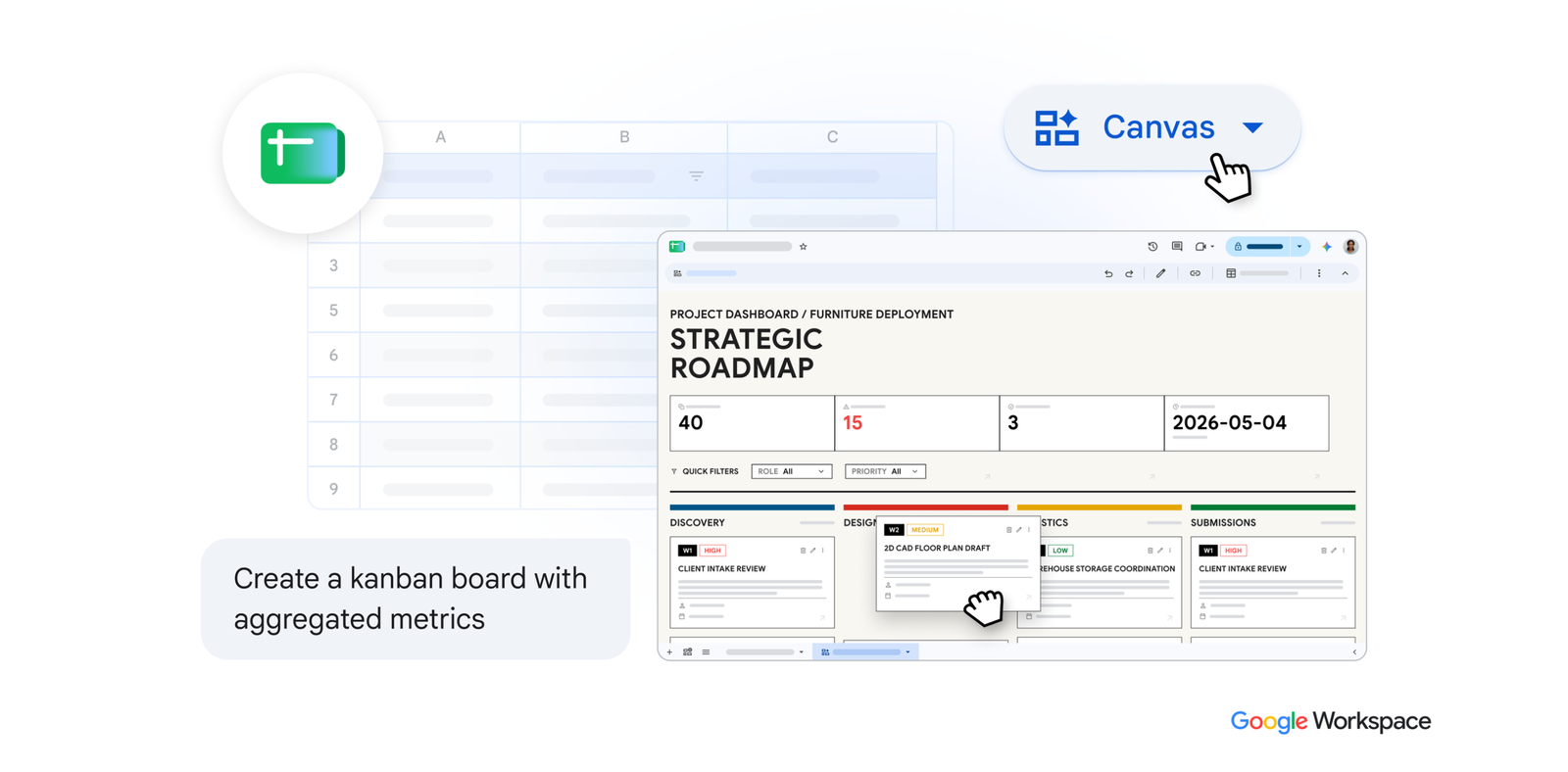
Transforming tabular data into visual and interactive platforms used to require external BI tools or programming skills. With the arrival of Canvas in Google Sheets, Gemini’s artificial intelligence makes it possible to convert traditional rows and cells into dynamic “mini-apps” that update bi-directionally and in real time with the source spreadsheet.
1. Turn project trackers into dynamic Kanban boards
Keeping track of tasks in a spreadsheet is essential, but operational management moves faster when information is visual. By asking Gemini to transform your to-do list into a Kanban board, the AI organizes cards into customized statuses (such as Not started, In progress, Requires review, and Completed).
Moving a card between columns or changing the assignee on the canvas automatically updates the cells of the original spreadsheet in real time.
“Create an interactive Kanban board based on the active task list, divided into columns by stage: ‘Not started’, ‘In progress’, ‘Needs more info’, and ‘Completed’. The board should allow users to drag cards between stages, double-click to edit card details, and use a quick-add button to instantly incorporate new tasks.”
2. Consolidate complex metrics into executive dashboards
Analyzing customer feedback or performance metrics across thousands of rows makes it difficult to get a global strategic view. Canvas allows you to transform raw data into a corporate dashboard with scorecards, trendlines, and interactive filters.
Executives can filter information by segment or dive into key metrics self-sufficiently. If the source data changes, the Canvas dashboard synchronizes instantly.
“Create an interactive dashboard that includes KPI scorecards, sentiment breakdowns by marketing channel, and toggleable filters. All charts and metrics should fill the available space and update dynamically in real time as users interact with the filters.”
3. Transform financial forecasts into interactive scenario models
Modeling financial forecasts requires understanding how different variables impact the final result, but creating traditional sensitivity analyses in spreadsheets can be complex.
With Canvas, you can convert a forecast into a visual, interactive model where you can adjust key assumptions and evaluate the impact immediately. This enables teams to test multiple business scenarios without altering or breaking ledger formulas.
“Create an executive and interactive financial dashboard that includes KPI scorecards, dynamic revenue and expense charts, and filters for simulation (‘what-if’) scenarios. Incorporate adjustable parameters that recalculate all forecasts, metrics, and dynamic headers. Design the interface using a clean, minimalist color palette, consistent grid spacing, and an expandable data log to view detailed breakdowns. Sliders should be placed on a single row.”
4. Map event timelines onto visual schedules
Organizing conferences or product launches requires managing multiple simultaneous activities. Canvas allows you to project activity lists onto an interactive schedule and a run-of-show calendar.
You can drag blocks to adjust conference times, update room logistics directly on the canvas, or insert new agenda items. Any adjustments will immediately reflect in the central planning sheet.
“Design an interactive event scheduling dashboard that includes a compact, stacked vertical timeline, a selector to toggle between daily views at the top, and a side panel with indicators for overall start and end times, as well as the total number of sessions. Incorporate a quick-access button for ‘New session’ that opens a simple form to easily add new events.”
5. Organize and prioritize tasks on a 2×2 planning matrix
Faced with an extensive to-do list or product requirements, determining team priorities can be overwhelming. With Canvas, you can distribute the task list within a 2×2 matrix that evaluates the priority level against the required development effort.
The team can adjust impact values directly on the grid and watch features move across quadrants, making it easier to identify high-impact, low-effort tasks.
“Create a visual 2×2 prioritization matrix where selecting any feature opens a sidebar with interactive sliders for its metrics. Adjusting these controls should dynamically recalculate the feature’s priority score and automatically reposition its marker on the matrix in real time. Display features as collapsed dots on the matrix, but expand the item upon hovering over it.”
6. Design control centers and custom views
Beyond corporate use cases, Canvas’s flexibility allows you to design control boards for any data flow. From organizing school itineraries or academic schedules to creating control centers to track sports team performance or inventory, Gemini builds interfaces tailored to specific user needs without writing code.
“Create an interactive and editable brainstorming board with a background grid divided into three categories. Represent inputs as square sticky notes that adjust horizontally to text, with no snap-to-grid alignment. Notes can be added, edited, or freely dragged anywhere, allowing them to overlap naturally. Newly added notes should appear at the bottom of their corresponding category while remaining fully draggable.”
Availability and account requirements
To access Canvas view in Google Sheets, your organization must have a supported Google Workspace subscription:
- Business Standard, Business Plus, Enterprise Standard, and Enterprise Plus.
- Licenses equipped with the Google AI Pro for Education add-on.
- Active subscriptions to Google AI Pro or Ultra.
Optimize your company’s visual management with G Nerd
Leveraging Google Workspace innovations allows your teams to save time preparing reports and focus on strategic decision-making. At G Nerd, we assist you in acquiring licenses, configuring security policies, and providing technical training for your staff.