
With the introduction of Sheets Canvas, Google transformed the way data is visualized in spreadsheets, allowing Gemini to turn complex tables into interactive mini-apps such as Kanban boards, timelines, and dashboards. Until now, however, sharing that interactive experience meant granting access to the entire Google Sheets file, exposing secondary tabs, sensitive formulas, or raw data not always intended for the broader audience.
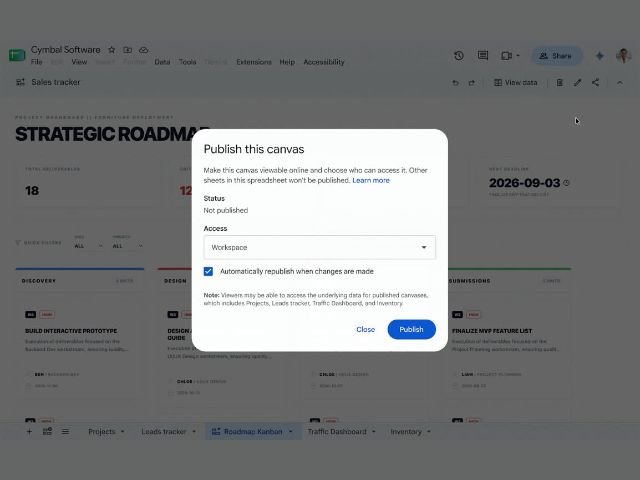
To solve this data governance and security challenge, Google is launching a new capability: you can now publish a Google Sheets canvas as a standalone link, allowing others to interact with the mini-app in view-only mode without needing access to the source file.
Interactive visualization with data isolation
The published link for a Sheets Canvas is completely separate from the original spreadsheet URL and features its own audience settings. This means a core team can manage and edit the master data in the original file while publishing the interactive interface to the entire organization (or authorized audiences) with complete peace of mind.
Recipients of the link can explore filters, navigate across views, and review visual insights without being able to alter the underlying data or access other tabs in the workbook.
Practical enterprise use cases
This separation between the data source and the public-facing view unlocks far safer and more agile workflows:
- Event management and logistics: An event coordinator can publish a conference agenda as a filterable timeline for hundreds of attendees, while only the organizing committee has edit access to the source spreadsheet.
- Project and launch tracking: A program manager can share a product launch timeline pulled from the team’s internal tracker, giving leadership real-time visibility without granting edit permissions on the master file.
- Training and Human Resources: Organizational Development teams can publish an interactive calendar of internal courses so all employees can browse upcoming sessions while keeping centralized control of the database.
How to publish a Sheets Canvas step by step
Publishing is currently available on the web version of Google Sheets and requires edit permissions on the canvas:
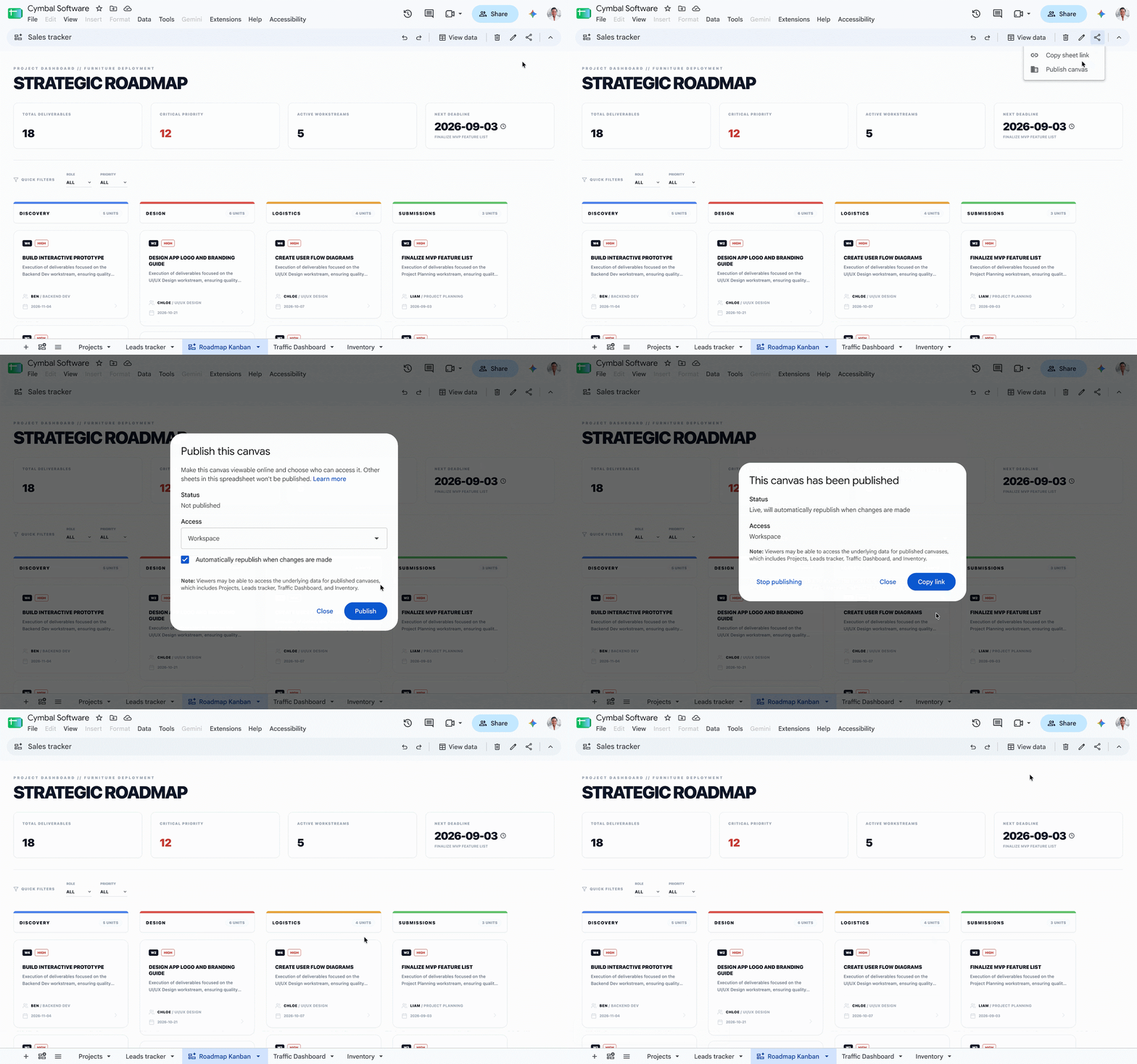
- Open your spreadsheet: Open Google Sheets in your browser and navigate to the tab corresponding to the Sheets Canvas you want to share.
- Open the publishing options: Click the publish icon located in the canvas toolbar and select Publish canvas.
- Configure data syncing: Choose how you want the published view to behave:
- Automatic republishing: The canvas dynamically updates whenever changes are made in the source spreadsheet.
- Static view: Publishes a fixed snapshot based on the current state of the data at that moment.
- Set the audience and share the link: Adjust who has permission to view the published link, copy the standalone URL, and share it with your team. From that same menu, you can change the audience or unpublish the canvas at any time.
Administration, governance, and availability
This feature is available within Google Workspace:
- Business Standard and Business Plus
- Enterprise Standard and Enterprise Plus
- Institutions with Google AI Pro for Education
- Users with the AI Expanded Access add-on and Google AI Pro and Ultra consumer plans
Note: Creating and editing canvases is subject to per-user usage limits.
Protect your data and democratize information with G Nerd
Sharing interactive dashboards without compromising the integrity of your master spreadsheets elevates operational security and streamlines cross-team communication. At G Nerd, we advise your business on configuring governance policies in Google Drive, adopting Gemini in Google Sheets, and providing ongoing training so your teams work securely and efficiently.