
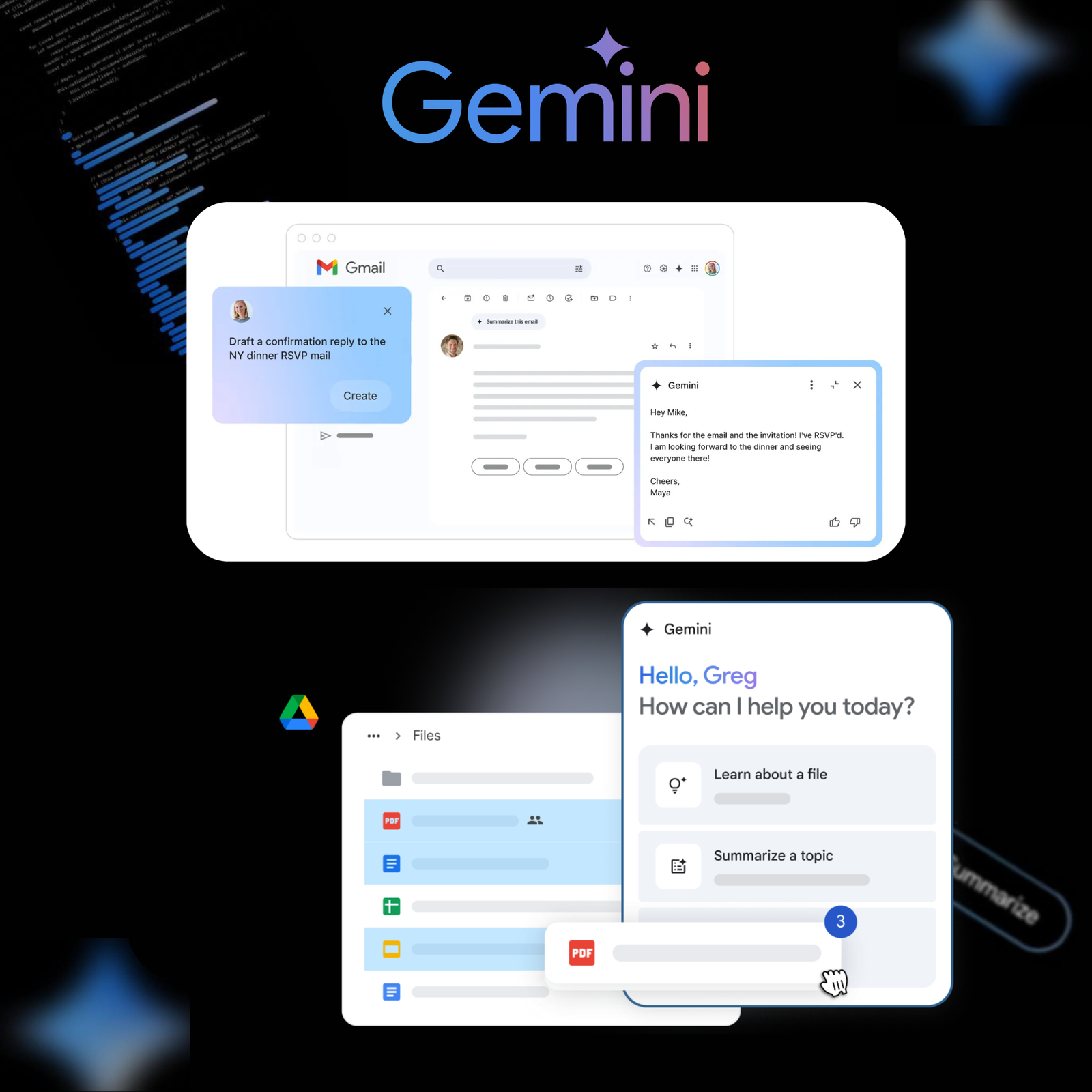
Summarize an email thread
Gemini can summarize an email thread with more than 2 replies.
- At the top of the email thread, click “Summarize this email”.
- In the side panel, you can also enter a prompt to request a summary.
Examples:
- “Summarize this email.”
- “Create a to-do list for me based on this email.”
- “Explain this email to me like I’m five years old.”
Summarize Drive files with Gemini
- On your computer, go to drive.google.com.
- In the top right, click Ask Gemini.
- In the side panel, choose a suggestion or compose a new one. Remember to include the document title in your prompt.
- Example: “Summarize key points in ‘Sales team meeting notes'”.
- Press Enter.
- Gemini will display the summary of your file/document.
- After receiving a response:
Below is a summary of the suggested content with the following options:
- View more: Displays the full summary of the content.
- Sources: Allows you to view the files and documents used to generate the response.
- Retry: Generates new text.
- Optional, you can ask Gemini questions to get a better understanding of the document. Some suggestions:
- “When does our contract with Provider A expire?”
- “Summarize this file in bullet points”
- “How many customer subscriptions did we get for this test app?”
- “Who wrote the design document for Project B?”
- Optional, you can ask Gemini questions to get a better understanding of the document. Some suggestions: