
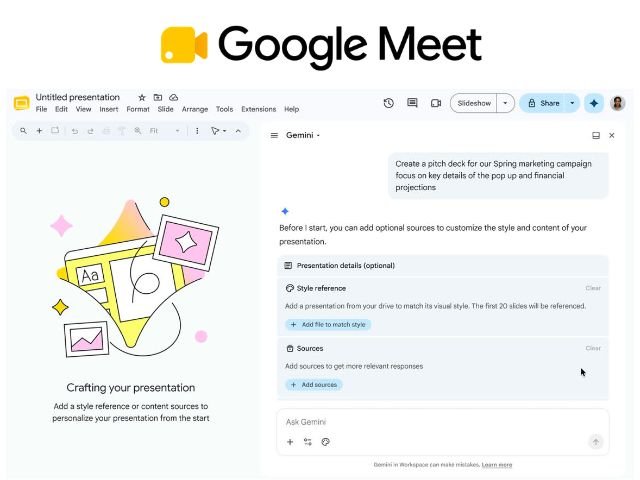

Google has updated Gemini’s integration in Google Slides, allowing users to generate full, multi-slide presentations from a single prompt. Unlike tools that deliver static mockups or uneditable images, Gemini builds 100% native diagrams, text, and layouts. This means every element (shapes, titles, images, and colors) remains completely editable.
Key capabilities of slide generation in Google Slides
The new Gemini architecture in Slides acts as a designer that respects the context and visual identity of your company:
- Grounding in your files: You can link documents, spreadsheets, emails, or chats stored in Google Drive so the AI can extract your business’s real data and facts.
- Brand style alignment: You can attach an existing presentation as a design reference so the new file automatically applies corporate colors, typography, and slide master layout.
- Outline editing prior to generation: Before rendering the slides, Gemini presents a draft or content structure. The user can add, delete, or reorder slides before approving the final layout.
- Fully native elements: All text boxes, geometric shapes, and inserted images are part of the native Google Slides ecosystem, making subsequent manual adjustments easy.
Step-by-step guide: How to generate a full presentation with Gemini
To create a slide structure linked to your documents and aligned with your brand, follow these steps from your computer:
- Open the Gemini panel: In Google Slides, start a blank presentation and click the Ask Gemini icon located in the top right corner.
- Enter your prompt: In the side panel, describe the purpose of the presentation, the target audience, and the estimated number of slides.
- Example prompt: «Create a 6-slide presentation on Q2 results for the board of directors, using a formal tone».
- Add sources and visual style:
- Click Add sources to select Google Drive files to serve as a factual basis.
- Select Match style of a presentation to link a template with your company’s graphic identity.
- Review and approve the outline: Gemini will answer refining questions (tone, text density) and display a structured step-by-step outline. Edit titles or add/delete slides as needed, then click Approve to build the final file.
Technical performance note by G Nerd: At launch, full single-prompt presentation generation is available in the web version of Google Slides for the English language. It requires no additional setup by domain administrators.
Availability and compatible Google Workspace licenses
This advanced feature is active by default for the following Google Workspace licenses and add-ons:
- Business: Standard and Plus
- Enterprise: Standard and Plus
- Education: Google AI Pro for Education
- Others: Google AI Pro and Google AI Ultra
Optimize your company’s visual communication with G Nerd
Allowing your team to use Artificial Intelligence to structure high-impact presentations dramatically reduces layout time. However, ensuring the success of these tools requires your team to know how to feed AI with accurate data while safeguarding corporate information confidentiality.
At G Nerd, we accompany you in acquiring and migrating Google Workspace licenses, and we train your staff to strategically master Google’s Artificial Intelligence tools.