
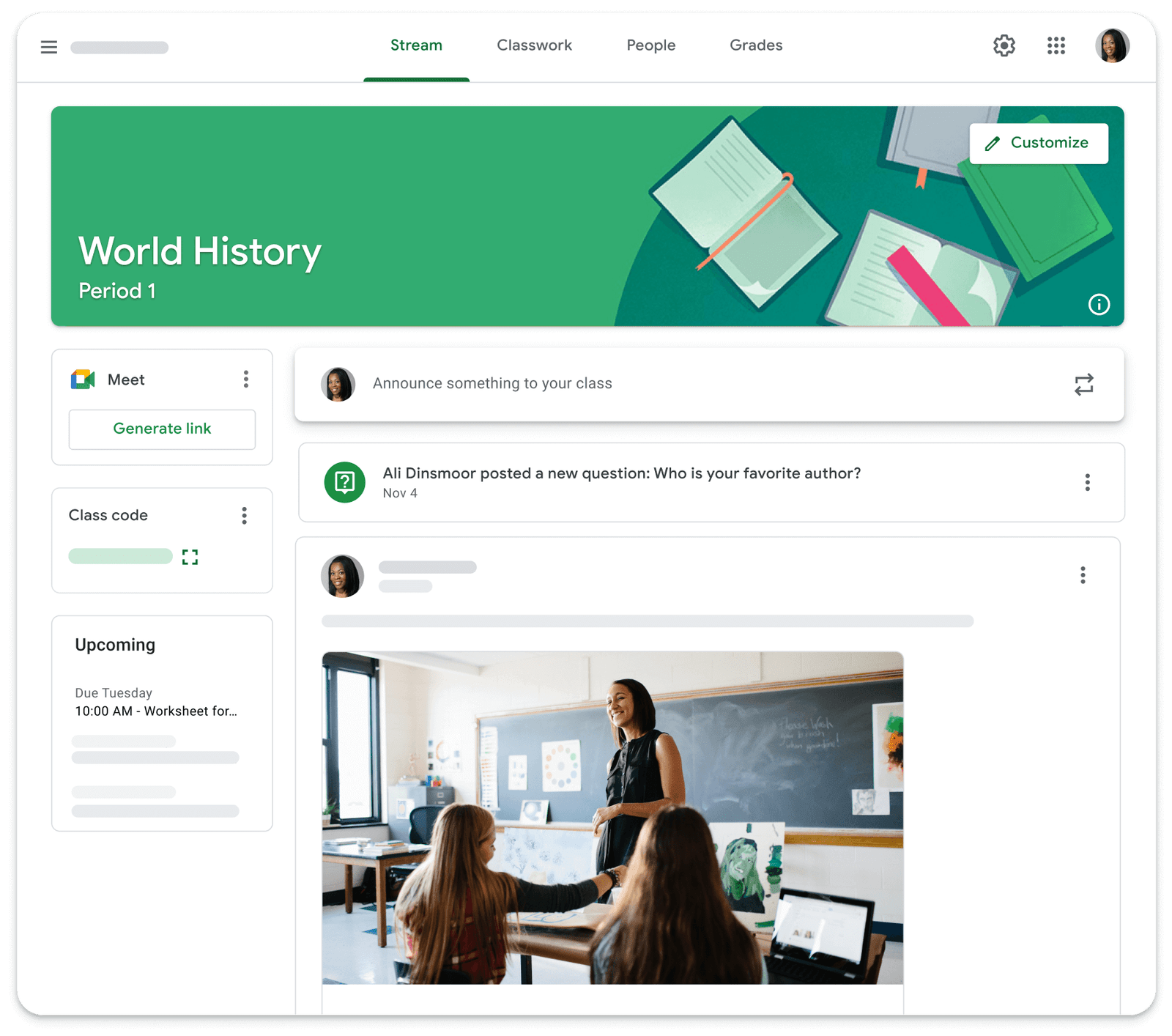
Join a video meeting from Classroom
If your teacher enables Meet in Classroom, you’ll have the option to join a video meeting for your class. Remember that you can only join after the teacher has started the meeting.
Join the meeting
To use Meet from Classroom as shown here, sign in to Classroom with a school account. Your account will look like this: youraccount@yourschool.edu.
- Go to classroom.google.com.
- Click the class.
- Choose an option:
- On the Stream page, at the top, click the Meet link.
- On the Classwork page, at the top, click Meet.
- In an announcement or post, click the link for the class video meeting.
Optional: To allow Meet to use your camera and microphone, select Allow.
- In Meet, at the top, verify that you logged in with your school account. If you need to switch accounts, click “Switch account” and select your Classroom account.
- To join the class video meeting, click Join now.

Restrictions
Google Meet access restrictions for Google Workspace for Education users:
- Education Accounts: Cannot join Meet video calls created by personal Google Accounts.
- Anonymous or signed-out users: Cannot join meetings hosted by users on this platform.
- The dial-in option remains available.