
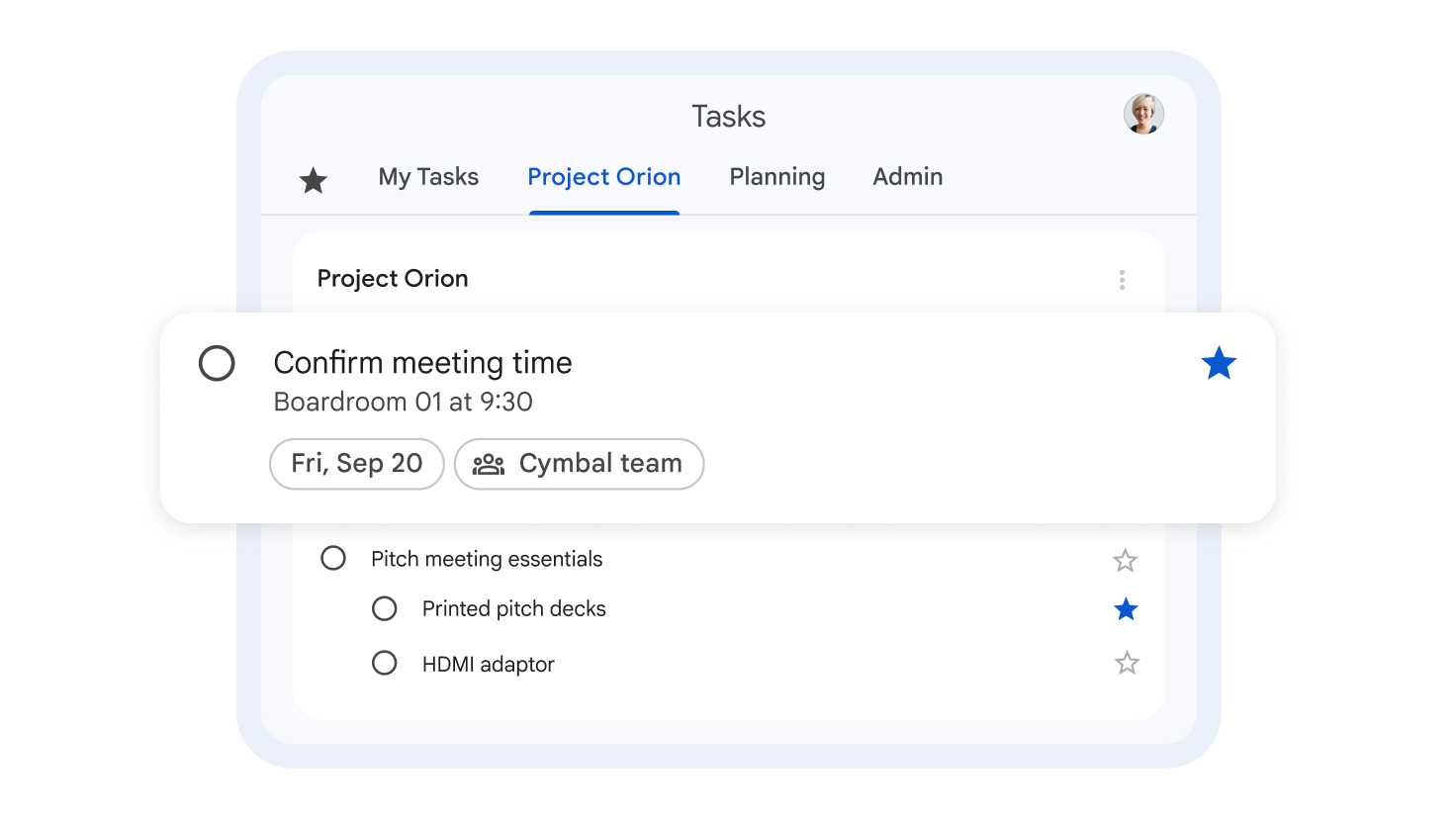
Tasks
Open your Tasks app
You can add tasks to the side panel in some Google Workspace apps.
- Go to Gmail, Calendar, Chat, Drive, or a file in Google Docs, Sheets, or Slides.
- Important: If you don’t see the Tasks app, click the arrow in the bottom right corner of the screen to expand the panel.
- On the right, click Tasks.
- Tip: In Gmail spaces, you can create, assign, edit, complete, and delete group tasks.
Open Tasks in Calendar
You can change views in your calendar to see your tasks and task lists on a single full screen.
- On your computer, open Calendar.
- In the top right corner, click Tasks.

Note: If you can’t access Tasks, contact your administrator.
Add a task and set a due date
In Tasks, each task goes into a list. To start, there is a default list where you can add tasks.
Adding a due date and time adds the task to your calendar:
- Go to Gmail, Calendar, Chat, Drive, or a file in Google Docs, Sheets, or Slides.
- On the right, click Tasks.
- At the top, click Add a task.
- Enter a task.
- To add a date and time, click Date/time.
- Tip:
- To repeat a task, next to “Date/time”, click Repeat. Tasks with subtasks cannot be repeated.
- In Google Calendar, a certain number of upcoming instances of a recurring task will appear on the calendar grid, and as time passes, new ones will be added automatically.
- Tip:
Drag a task to reorder it
Important: To reorder your tasks, change your sorting options to “My order”. At the top of a list, click List options, then My order.
- On your computer, select an option:
- Open Tasks in Calendar.
- On the right of the side panel, click Tasks.
- Click and hold a task.
- Move the task to where you want it.
Tip: To reorder a task you are editing, on the left, click and hold Drag.

Update a task or its due date
- Go to Gmail, Calendar, Chat, Drive, or a file in Google Docs, Sheets, or Slides.
- On the right, click Tasks.
- Click the task you want to change.
- Change the task information.
- Tip:
- If you want to change the date and time for the next repeated task in a series, click the date.
- To edit the date and time for all tasks, at the bottom, click the repetition details.
- Tip:

Mark a task as completed
- Go to Gmail, Calendar, Chat, Drive, or a file in Google Docs, Sheets, or Slides.
- On the right, click Tasks.
- To the left of a task, click Complete / Mark as completed.

View your completed tasks
- On your computer, select an option:
- Open Tasks in Calendar.
- On the right of the side panel, click Tasks.
- Select an option:
- To find completed tasks, next to “Completed”, click the Right arrow.
- To hide completed tasks, click the Down arrow.
Tip: You can hide completed tasks that are displayed on your calendar.
Delete a task
- Go to Gmail, Calendar, Chat, Drive, or a file in Google Docs, Sheets, or Slides.
- On the right, click Tasks.
- Hover over the task you want to delete.
- Next to the task name, click Open More menu, then Delete.