
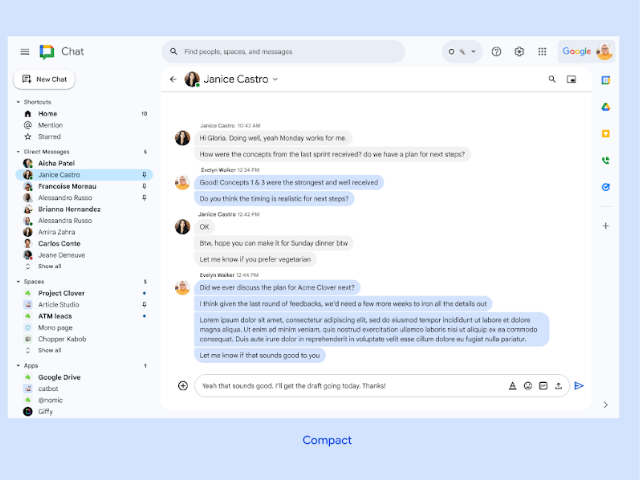
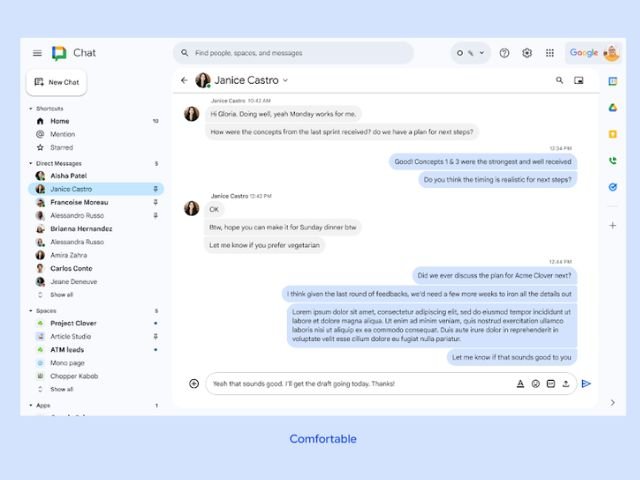
1. Choose between “Comfortable” and “Compact” for your workspace
Do you like seeing a lot of information on your screen without having to scroll? Or do you prefer a cleaner, more modern design? Google Chat now gives you the option to choose between two display modes so you can tailor the interface to your preference.

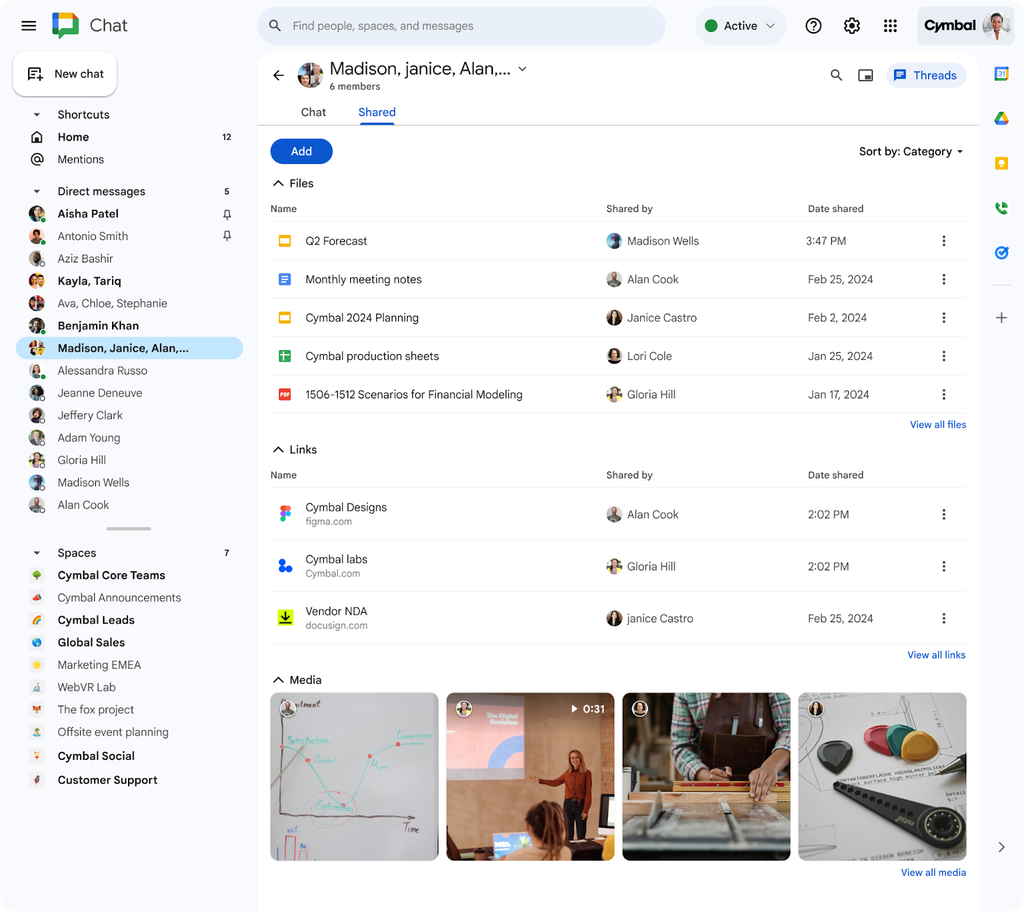
2. Easily access your shared files with the “Shared” tab
3. Identify thread relevance at a glance
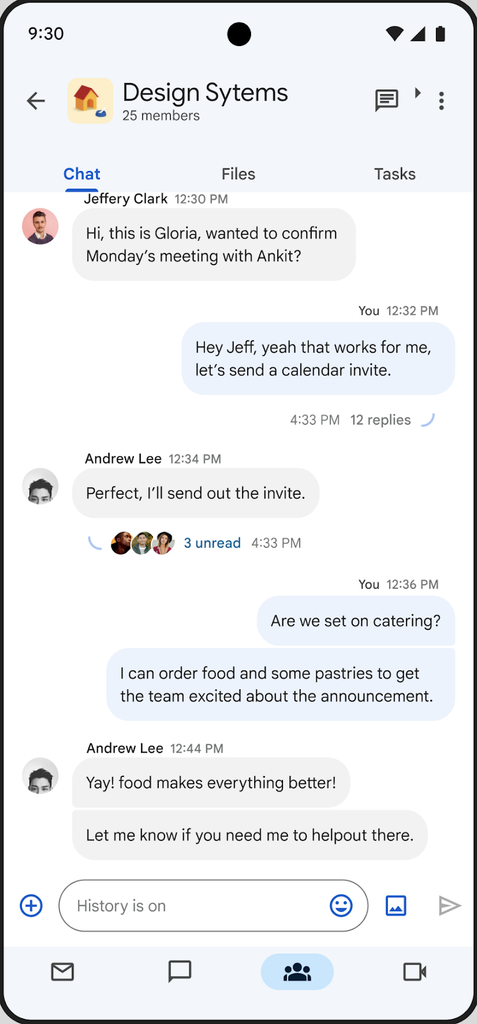
Now, you will see participant avatars on unread threads within the conversation view. This gives you a quick idea of who has participated and whether the thread is relevant to you, without needing to open it. That way, you can decide much more efficiently which conversations to read and reply to first.
Additionally, threads you don’t follow that have new messages will no longer appear in bold or jump to the top of your conversation list. This helps keep your inbox more organized and distraction-free, allowing you to focus on what truly matters.
Want to learn more about how Google Workspace can transform your company’s productivity? Contact us! At G Nerd, we help you integrate and leverage all tools so your team reaches its full potential.
Resources
-
- New density setting in Google Chat
- Access and sort shared files more easily in Google Chat conversations
- Easily identify which unread threads are most relevant to you in Google Chat
- Summarize shared files in Google Chat with Gemini
- HubSpot: Integration with Google Chat
- Markdown Styles: Elevate Your Conversations in Google Chat