
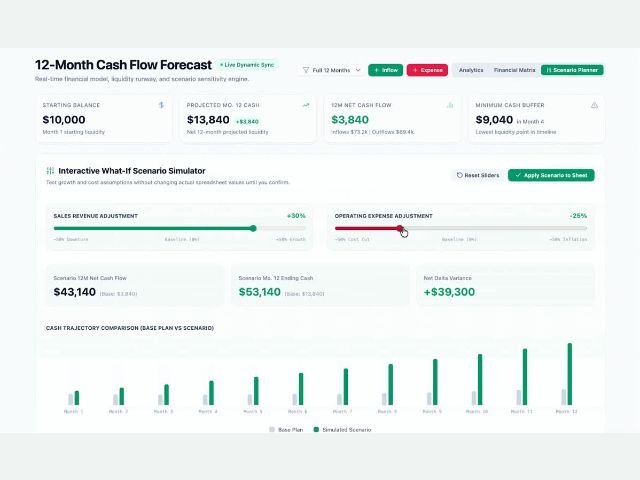

Data analysis in traditional spreadsheets is often limited by the rigid structure of rows and columns. To break down these design barriers and facilitate analytical work, Google introduces Canvas in Google Sheets, a new spatial view that allows you to organize data components, charts, and text freely and visually.
What is Sheets Canvas?

Sheets Canvas is a new freeform canvas layer built directly into Google Sheets. Unlike the traditional grid of rows and columns, this two-dimensional space allows you to drag, drop, and arrange different visual elements without altering the underlying structure of your data.
With this flexible canvas, organizations can integrate:
- Dynamic data tables: Link specific cell ranges to display them as visual cards.
- Charts and key indicators: Display real-time performance metrics alongside source data.
- Diagrams and connectors: Visually link different workflows, processes, or financial models.
- Notes and multimedia elements: Add operational context to your reports using rich text and images.
How It Works

Sheets Canvas combines the analytical power of spreadsheets with the versatility of a collaborative digital whiteboard.
- On your computer, open a Google Spreadsheet.
- Choose how you want to create your canvas from the following options:
- Side panel: Click Tools > Create canvas.
- Menu bar: Click Insert > Create a canvas.
- Bottom bar: Click the Canvas menu > Create a canvas.
- In the prompt box, ask Gemini to create the interactive visualization. Here are some examples of visualizations:
- Kanban boards:
- Group tasks by status or category.
- Drag and drop items to update progress in real time.
- Gallery views: Display information in a card-based layout. You can sort and filter data as needed.
- Calendars: Track campaign launch dates. Edit dates and create new events directly within the interface.
- Dashboards: Perform data analysis on metrics such as:
- Pricing
- Inventory
- Ratings
- Kanban boards:
- Optional: To make changes to your data after the canvas is generated, enter another prompt.
- Example: “Switch this dashboard to dark mode.”
Additional notes:
- Currently, this feature is only available on the web for accounts set to the English language.
- For the best performance, use standard Google Sheets files. To use Gemini features in an Excel file, click File > Save as Google Sheets.
- Canvases only use data from a single sheet tab.
- To find the underlying data, click View data in a canvas.
- Refresh to manage all your sheets and canvases in the tab bar.
Benefits for Management and Decision-Making
Integrating Canvas view into your company’s daily operations delivers immediate strategic advantages:
- Greater executive clarity: Transform complex datasets into clear, straightforward presentations for board meetings or clients.
- Operational time savings: Eliminate the need to export data to other design applications to create visual reports.
- Data integrity: Separating the visual presentation layer from operational formulas reduces the risk of accidentally modifying or deleting complex calculations.
Who Can Use This New Feature?
Sheets Canvas is available to Google Workspace users in the following environments:
- Workspace Enterprise and Workspace Business Plans: Including Starter, Standard, and Plus editions.
- Education Sector and Nonprofits: Available for Google Workspace for Education and Nonprofits accounts.
- Individual Accounts: Users with Google Workspace Individual subscriptions.
It requires no complex configuration by the IT administrator; the feature is enabled by default for all end users with compatible licenses.
Optimize Google Workspace Usage in Your Company
At G Nerd, we help your organization adopt Google Workspace updates strategically. In addition to managing licensing procurement and administration, we train your teams to effectively use collaborative tools and integrate Google AI to accelerate business productivity.
Contact our specialized consultants to review your current licenses or schedule a training session for your team.


One Comment