
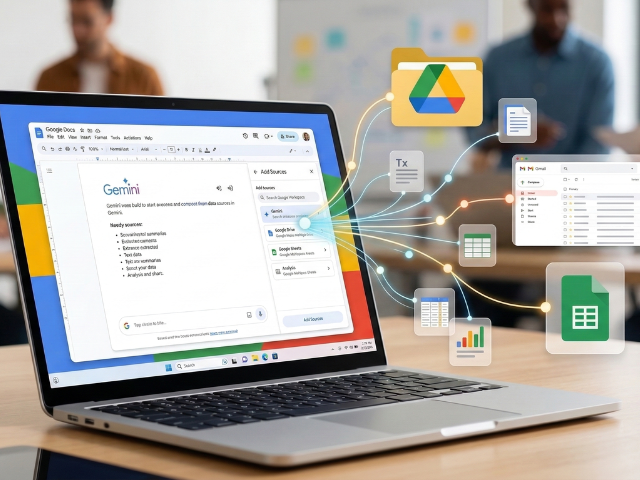
When you use Gemini in Workspace applications like Docs and Drive, you use sources to tell Gemini exactly which information to use in its response.
Sources are files, documents, or contextual information that Gemini uses to provide more relevant and focused responses to your prompts.
With sources, Gemini can:
- Search for information: Get personalized answers or request data points found within your files.
- Summarize documents: Get a summary or extract key points from a file used as a source.
- Compare facts across files: Use multiple source files to compare data, insights, or findings between them.
Understand your sources

When you interact with Gemini, you can manage the content it can access to inform its response.
You can:
- Add a source from Drive
- Available for Docs, Drive, and Slides.
- These are specific files you add from Drive when you want Gemini to prioritize them before consulting other options. When you add a source, it remains active throughout the conversation, providing consistent context for Gemini’s responses.
- Use contextual sources
- Available for Google Sheets.
- In Sheets, you can add specific tables or cell ranges as a source. When prompted, Gemini will focus its analysis on the selected tables or cell ranges.
Add a source from Drive

To add a source in Docs:
- In the top right corner, click Ask Gemini.
- At the bottom of the panel, click Add sources.
- Click Add from Drive.
- Select a file.
- Click Add.
To add a source in Drive or Slides:
- In the top right corner, click Ask Gemini.
- At the bottom of the panel, click Add sources.
- Select a file.
- Click Add.
What can you add as a source?
- Google Docs
- Google Sheets
- Google Slides
- PDFs
Tips:
- To add a file, you need permission to view it. You can only use files as sources that you have permission to view in Drive. If you don’t have access to the file, you will receive this alert: “You need access to some files”.
- Before adding a PDF as a source, upload it to Drive.
Use contextual sources in Sheets

Cell ranges
In Sheets, if you want Gemini to use a specific range or table in the file instead of the entire sheet:
- Highlight the cell range in your sheet.
- Ask Gemini a question that references the range.
Tip: Cell ranges are only for the sheet tab you are currently on.
Check the sources contributing to Gemini’s response
After Gemini generates a response, you can review the list of files that contributed to it. Underneath Gemini’s response, select “Sources” to see the list of sources.
For all requests you make to Gemini, there is a limited processing capacity, often referred to as the context window. If you have too many sources or include sources with too much text, they may exceed this capacity. In these cases, Gemini might base its response on part of the content, but not all of it.
Even when Gemini shows its sources, it can make mistakes. For example:
- Gemini might overlook a source it used or cite a document that isn’t directly used for a specific piece of information.
- In some cases, Gemini might invent a source and present it as a fact even if it wasn’t part of the request.
Be sure to verify the response and information with the listed sources and other trusted sources before relying on the generated content.