
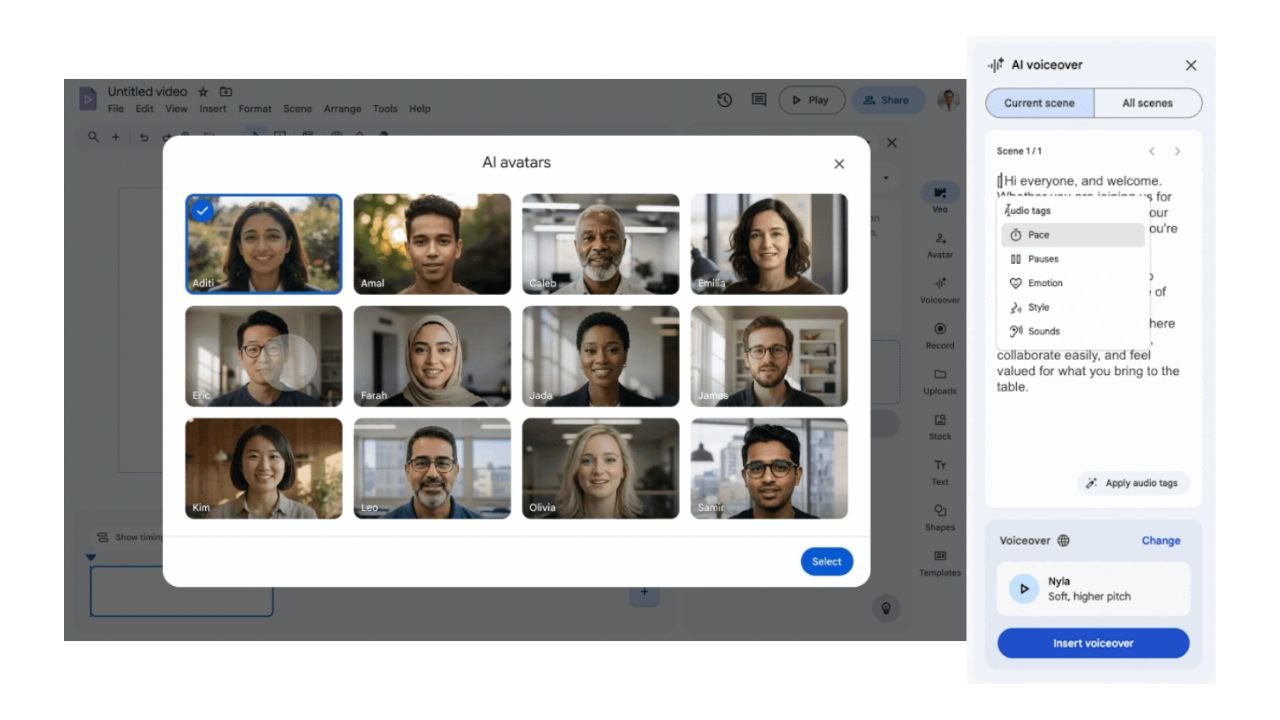

Corporate audiovisual content creation has taken a firm step towards advanced personalization. In the context of internal communication, training, and B2B marketing, conveying the right intonation is critical to capturing the audience’s attention. To solve the usual stiffness of synthetic voiceovers, Google has integrated direct voice direction tools into Google Vids. This update allows users to modify emotions, reading speed, and sound effects in voiceovers and digital avatars using simple text tags.
Audio directives through text tags in Google Vids
Previously, adjusting the expressiveness of a virtual speaker required regenerating entire paragraphs or manually editing audio tracks. With the addition of bracket controls, the user takes on the role of a stage director indicating the exact tone of the voiceover on the script’s timeline.
The adjustment capabilities are divided into three operational areas:
- Emotional intelligence: Allows adding specific nuances to the voice or avatar, such as excitement, calm, or seriousness ([excitedly], [calm]).
- Pacing and pause management: Controls the speed of the message or adds strategic silences to emphasize key points.
- Integrated sound effects: Enables integrating sound elements directly into the voice script.
Step-by-step guide: How to apply audio directives to your avatars
There are two workflows for adjusting the tone of your presentations within the platform:
Option 1: Manual tag insertion in the script
- Access the voiceover panel: In your active Google Vids project, open the Scripts or Voiceover section in the right sidebar panel.
- Type an opening bracket: In the text box containing your message, type an opening bracket [. An interactive menu with available direction tags will immediately pop up.
- Select the modifier: Choose the desired emotion, pacing, or effect (for example, [excitedly]) before the text that requires that intonation.
- Generate the audio: Click Insert voiceover to process the new track with the applied nuances.
Option 2: Automatic tagging with Artificial Intelligence
If you have a lengthy script and want to save time, use the automation feature:
- Type or paste the complete text into the voiceover box.
- Select the Apply audio tags button.
- Google’s AI will analyze the context of the message and automatically insert appropriate pauses and emotional tones throughout the narration. You can make manual adjustments to the suggested tags before saving the final result.
Availability and compatible Google Workspace licenses
This feature for directing avatar and AI voiceovers is available in the following subscriptions and add-ons:
| License Category | Compatible Google Workspace Plans |
|---|---|
| Business Plans | Business Starter, Business Standard, and Business Plus |
| Enterprise Plans | Enterprise Starter, Enterprise Standard, Enterprise Plus, and Enterprise Essentials editions |
| Education & Public Sector | Google Workspace for Education Plus, Teaching & Learning Upgrade, Nonprofits, and eligible personal accounts with AI add-ons |
Boost your company’s audiovisual communication with G Nerd
Incorporating avatars and Artificial Intelligence into your organization’s videos optimizes production time; however, ensuring messages convey the right impact requires strategy and proper tool adoption.
At G Nerd, we guide your company through Google Workspace licensing and train your teams to master solutions like Google Vids and Gemini safely and efficiently.